NovaCrate
Web-based editor for Research Object Crates
Entity Editor
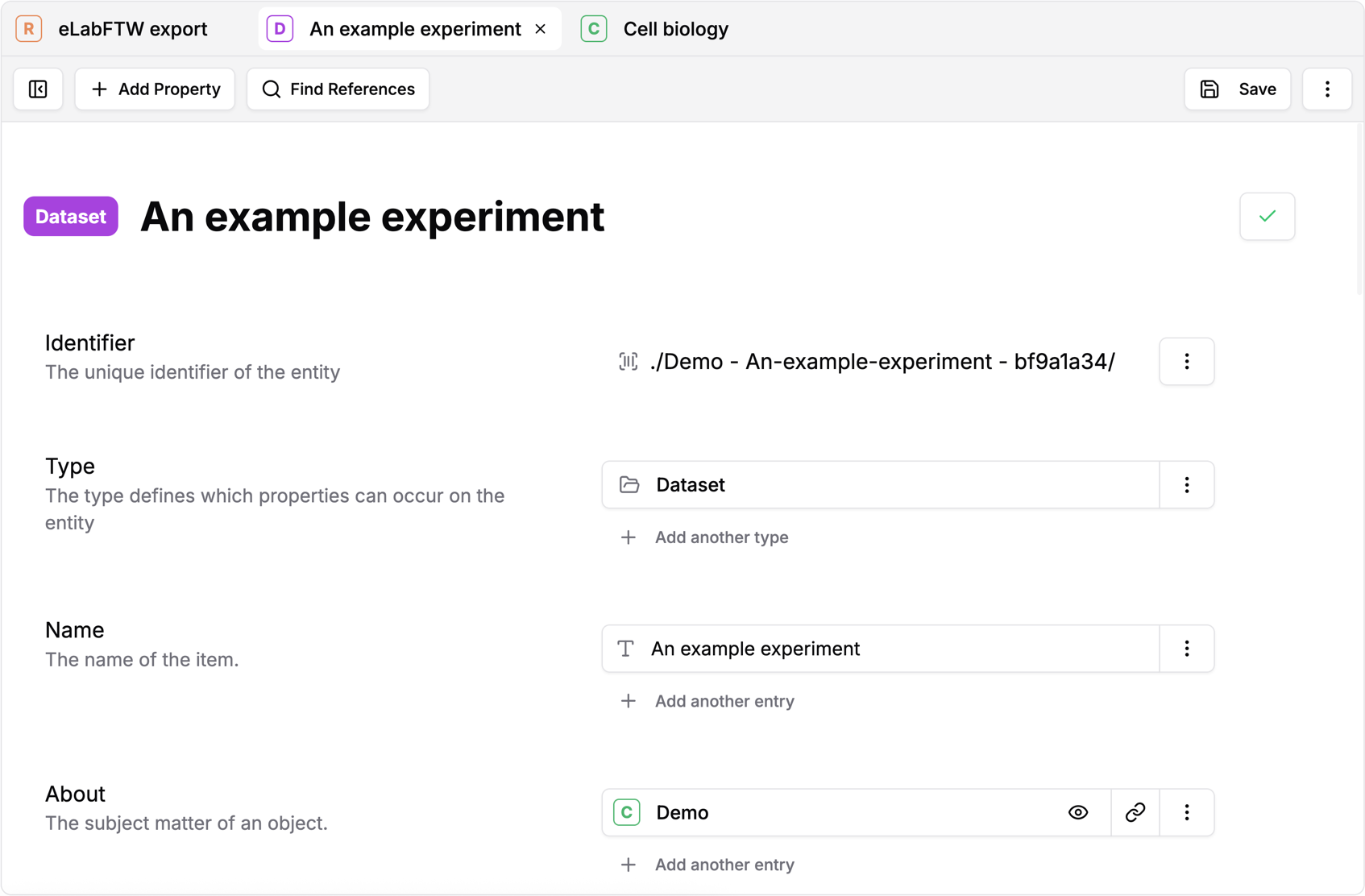
The main strength of NovaCrate is its usability-focused entity editing approach. The entity browser and the global search make it easy to find the entity you want to work on. The entities you are currently working on are displayed in a tabbed interface, so you can quickly switch between the entities you are working on.
To ease the learning curve for beginners, rich property descriptions and type checks are included. Each property provides input fields that match their expected value. Referential properties automatically restrict the reference to matching target entities.
While describing your research data, you can open a preview of any file in the crate on the right side of the editor, allowing you to easily integrate information already present in your research data.
Tip: While working on an entity, NovaCrate will show you which properties have been added, removed or modified using colored highlights.
Integrated File Explorer
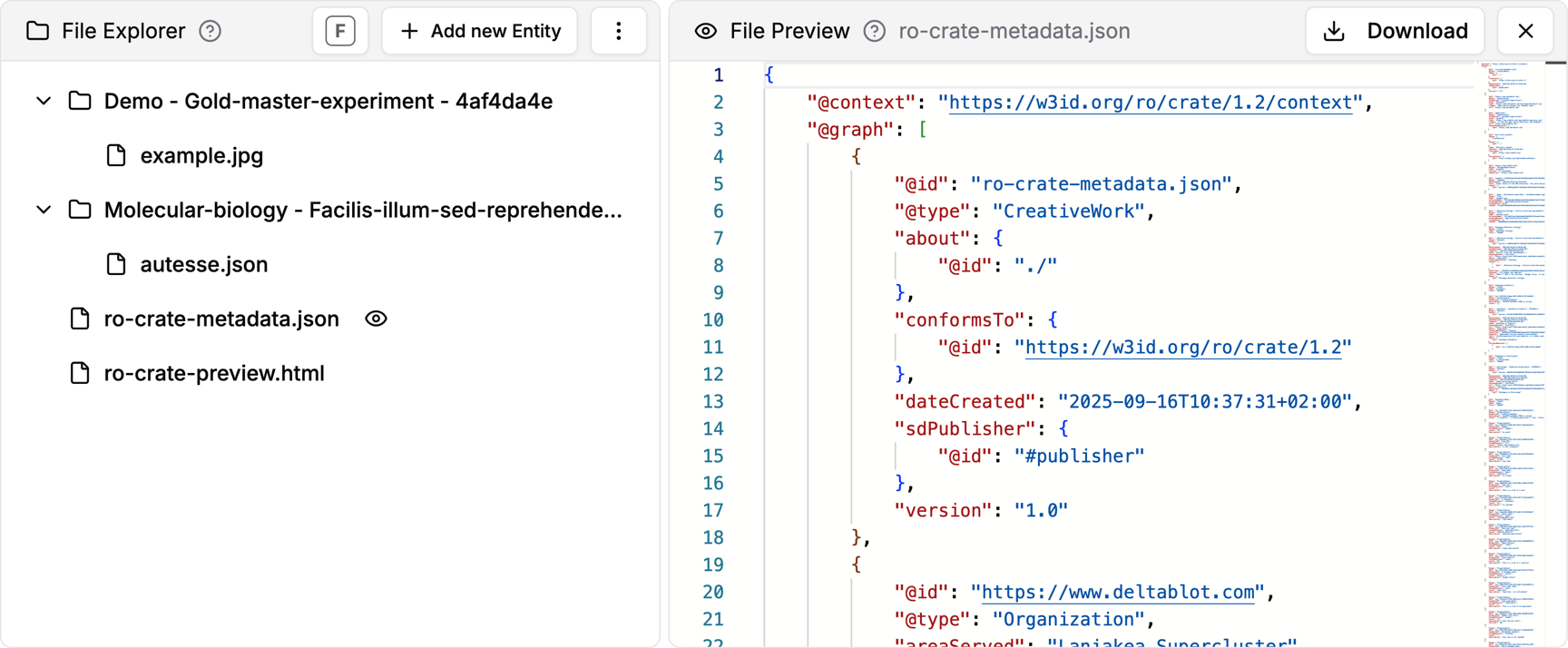
NovaCrate provides an in-app file explorer that lets you view the contents of your Research Object Crate through a file-tree. You can preview files in your RO-Crate through a double-click (only supported for some common file formats). The file explorer allows easily uploading new files to the crate, as well as renaming or removing files and folders in the crate in case of errors or mistakes.
To help you keep track of your metadata, a toggle at the top of the file explorer allows displaying the links between your research data and associated metadata. This way, you can directly see which metadata entities correspond to your research files and folders, while also allowing you to directly create matching metadata entities for files or folders that are not described yet.
Tip: You can view some supported file types directly in the editor, which can be very handy when manually extracting metadata from, e.g., a PDF file.
Metadata Graph
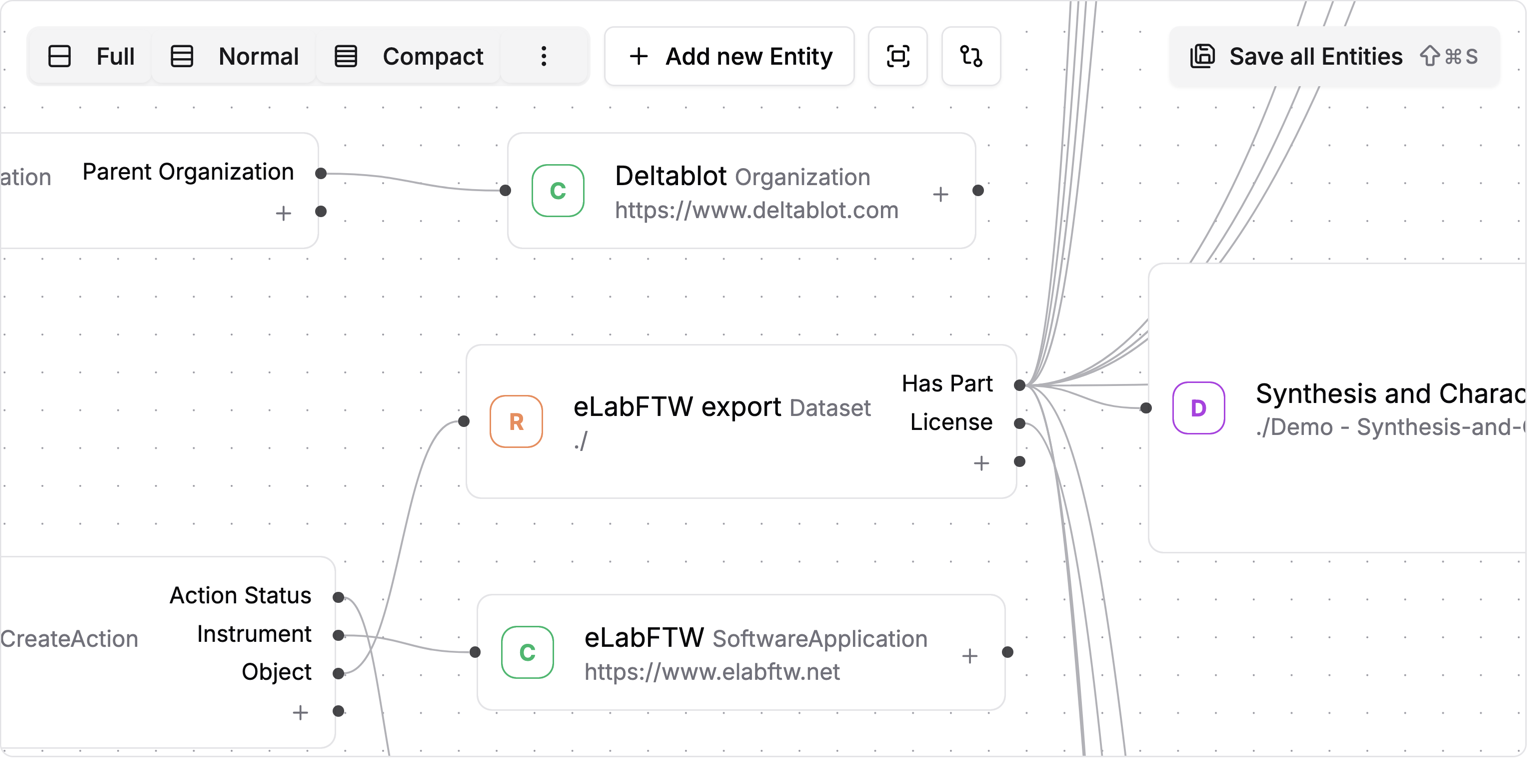
As the metadata within a Research Object Crate is organised in the JSON Linked Data format, the references between metadata entities are of great importance. NovaCrate provides a graph-visualization of the references between the metadata entities of your crate. This allows you to instantly understand the structure of your metadata, and find possible issues or potential for reuse.
Furthermore, the Metadata Graph is interactive. By simply dragging-and-dropping between the connection ports of the metadata entities, you can create new references or edit existing ones. You can also add new properties to your metadata entities, matching the reference that you draw between metadata entities.
Tip: You can drag-and-drop new connections between entities or remove existing ones directly in the graph.
AI Assistant
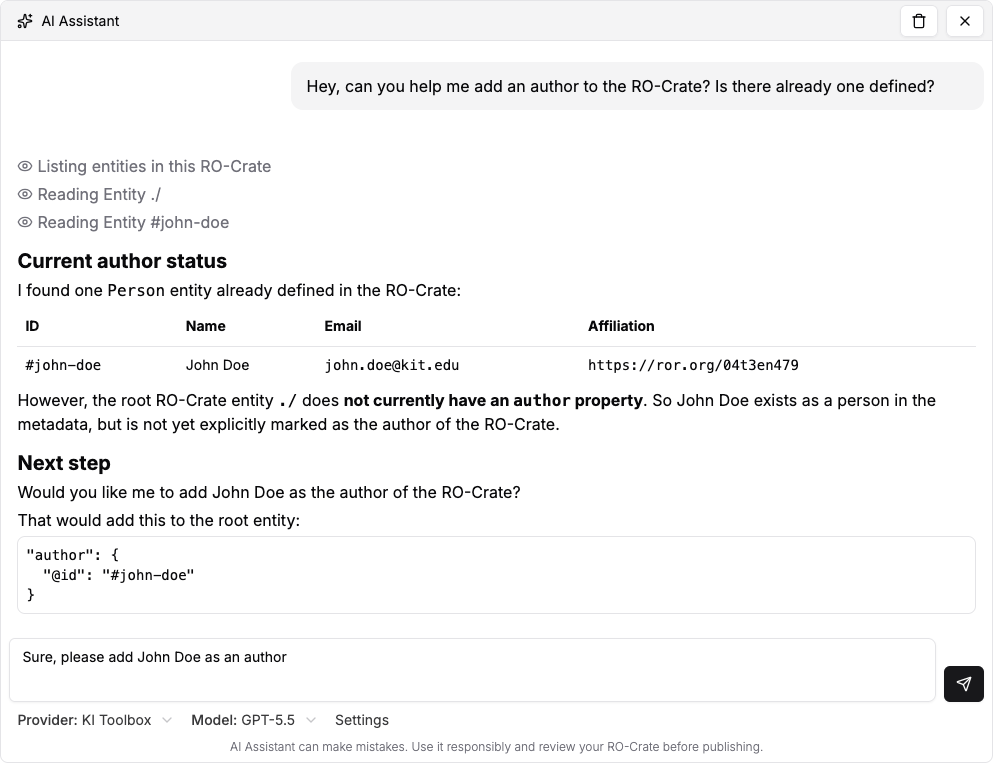
NovaCrate now includes an AI Assistant to help you with many different tasks in and around your RO-Crate. The AI Assistant can read and edit your metadata, read plain files (like .txt or .csv), import Person and Organization entities from ORCID and ROR and even run the NovaCrate metadata validation itself. Simply ask it any question, and it will try its best to answer it.
This feature does not require a subscription within NovaCrate. Instead, you need to bring your own API Key for one of the supported AI providers. You will likely need a subscription with them. The following providers are supported: OpenAI (for ChatGPT), Anthropic (for Claude), OpenRouter (for a limited selection of free models), and OpenAI-Compatible (if you have access to an OpenAI-Compatible LLM Provider, such as Open WebUI)
To get started, take a look at the AI Assistant setup guide
Tip: Bring your own API Key - no subscription within NovaCrate required!
Validation
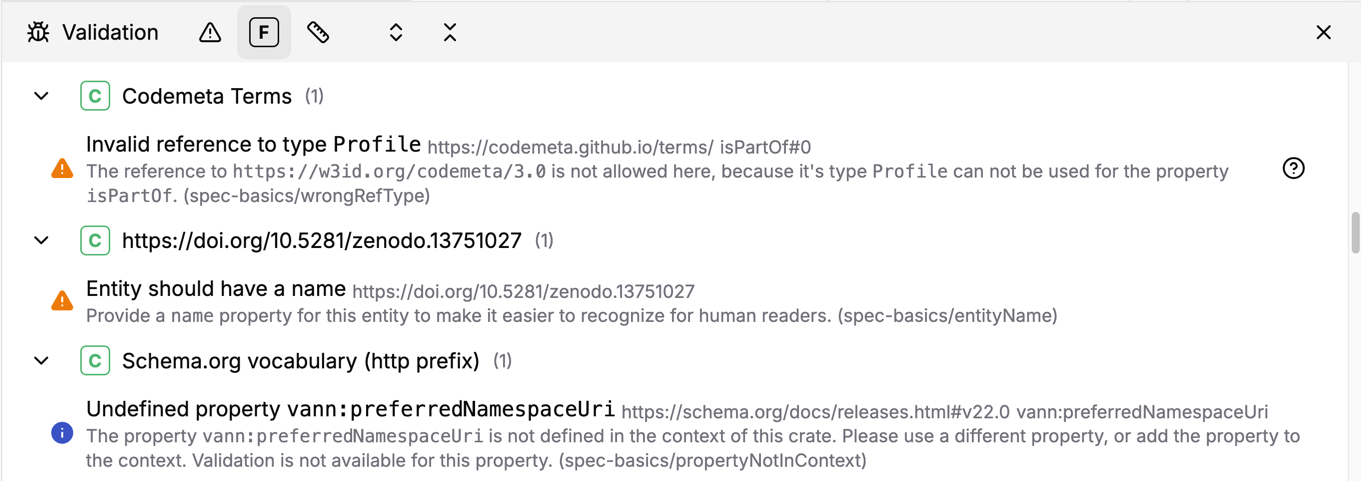
NovaCrate implements numerous validation rules to make sure the Research Object Crate you work on is conformant to the current specification and follows best practices. Validation issues are reported in a granular manner directly where they occur - either on Crate-level, Entity-level or Property-level, removing the need for guessing where an issue has occurred.
In addition to the best-practice-validation, NovaCrate also validates if the references between your metadata entities are valid, and if there are any properties present with invalid values.
Tip: Validation may be incomplete or inconsistent. You can disable the validation in the settings.
Configuration
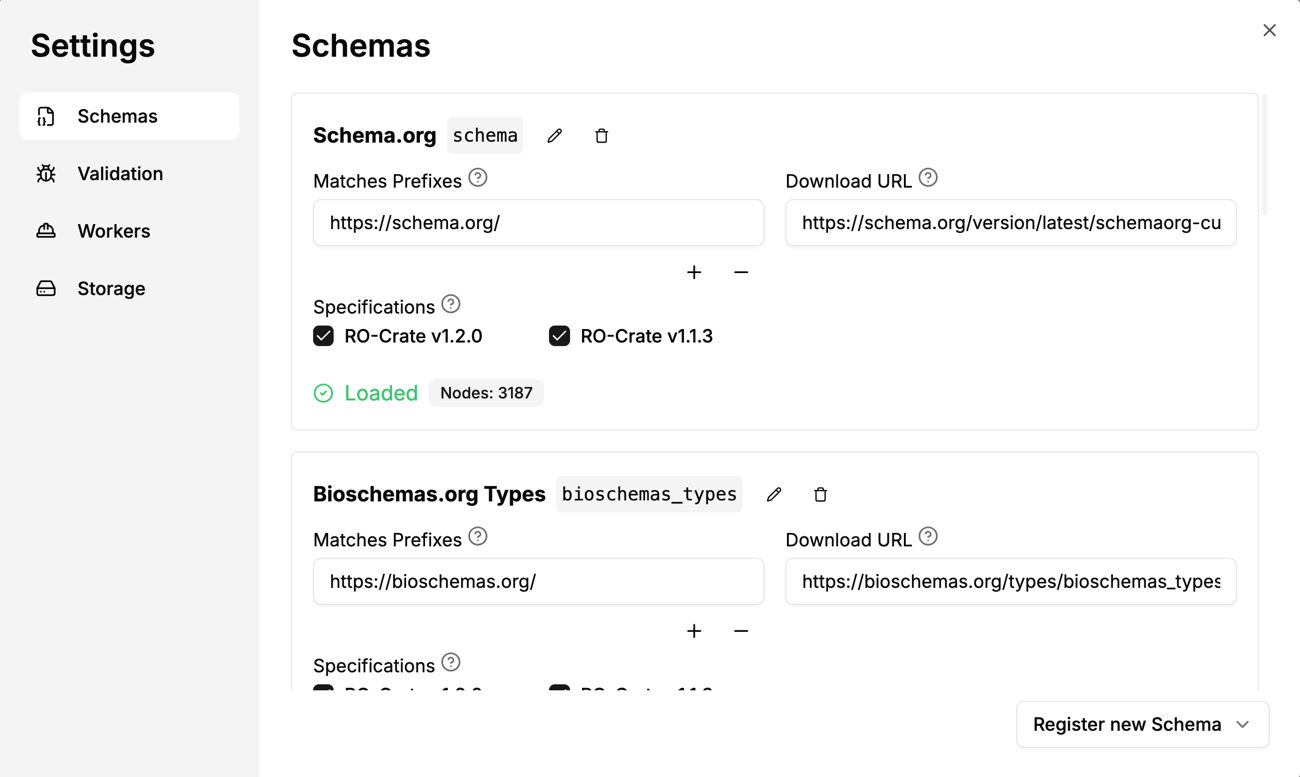
Tip: Schemas are loaded on-demand, only when they are needed.
Quickstart
Tip: Feel free to bring your own RO-Crate to try out NovaCrate!

